Monday, June 27, 2011

How to use the Remote Desktop feature of Windows XP Professional

How to Configure a Remote Desktop


I took this article from microsoft site
to support the previous posts about the remote desktop
.

To configure a remote desktop connection between a remote Windows XP Professional-based computer and a local computer running one of the versions of Windows listed earlier in this article, follow these steps.

Step 1: Configure the Remote Computer

On the remote Windows XP Professional-based computer, follow these steps:
  1. Click Start, and then right-click My Computer.
  2. On the shortcut menu that appears, click Properties.
  3. Click the Remote tab, and then click to select the Allow users to connect remotely to this computer check box.
  4. When you are prompted to confirm this change, click OK.
  5. Click Select Remote Users, and then click Add to specify additional user accounts to be granted remote access.

    NOTE: Administrators are automatically granted remote access privileges.
  6. When you are finished adding user accounts, click OK. Make sure that the account that is being added does actually exist on the remote computer. If the account does not exist on the remote computer, create it.
  7. Click OK, and then click OK again.

Step 2: Configure the Local Computer

Configure the Remote Desktop feature on the Windows-based computer. To do this, follow these steps:
  1. Insert the Windows XP compact disc (CD) into the CD-ROM drive or DVD-ROM drive on the local computer.
  2. On the Welcome to Microsoft Windows XP screen that appears, click Perform additional tasks.
  3. Click Set up Remote Desktop Connection.
  4. Follow the steps of the Remote Desktop Connection InstallShield Wizard to install Remote Desktop Connection.

Step 3: Connect to the Remote Computer

To connect to the remote Windows XP Professional-based computer, follow these steps:
  1. Log on to the local Windows-based computer.
  2. Make sure that you are connected to the Internet or to the LAN. If you require a dial-up connection to a virtual private network (VPN) or Remote Access server, connect to it.
  3. Click Start, point to All Programs, point to Accessories, point to Communications, and then click Remote Desktop Connection.
  4. Click Options.
  5. In the Computer list, type the host name or the IP address of the computer to which you want to connect.
  6. Type the user name, password, and domain (if applicable) of an account to which you have allowed remote access into the corresponding boxes, and then click Connect.
  7. In the Log On to Windows dialog box that appears, type the password of the account with remote access privileges into the Password box .
  8. In the Log on to list, if applicable, select the domain or remote computer that you want, and then click OK.

    The remote desktop is displayed in a window on the desktop. The remote Windows XP Professional-based computer is locked during this session.
  9. To disconnect the session, click the Close button in the session window, and then clickOK when you are prompted to disconnect the Windows session
OK, that was it is a way to use remote desktop, may be useful for you

Conect to another computer using remote desktop

Remote desktop is a standard tool , and coming with a windows installation. You can access it and enable it from the "accesorries" menu from your windows.

With Remote Desktop Connection, you can access a computer running Windows from another computer running Windows that is connected to the same network or to the Internet. For example, you can use all of your work computer's programs, files, and network resources from your home computer, and it's just like you're sitting in front of your computer at work.

To connect to a remote computer, that computer must be turned on, it must have a network connection, Remote Desktop must be enabled, you must have network access to the remote computer (this could be through the Internet), and you must have permission to connect. For permission to connect, you must be on the list of users.

based on this article : http://windows.microsoft.com/en-US/windows-vista/Connect-to-another-computer-using-Remote-Desktop-Connection

Saturday, December 13, 2008

problem with windows 2000 server

i have windows 200 server and keep restarting with 60 second count down timer, and it randomly haven with all my 2000 server in my office

Wednesday, May 7, 2008

Windows XP wireless configuration


Wireless Configuration for Windows XP
802.11b technology enables computers equipped with Wireless LAN cards to join a wireless network. Follow these steps to configure your PC with Windows XP to use its wireless card. You may use the links below to jump directly to a particular step in the setup process.
Verify that the
Wireless hardware is working.
Verify that your Wireless card is
registered with DHCP.
Configure TCP/IP to use your Wireless connection.
Configure your Wireless card to use the
University Infrastructure.
Test your connection.
Verify that the Wireless hardware is working
Open the "Computer Management" administrative tool. It can be found by pressing the "Start" button, selecting "Settings" and clicking on "Control Panel". Double-click on "Administrative Tools", and then on "Computer Management". At left, click once on "Device Manager". At right, click the "+" next to "My Computer" to expand a list of device categories. Click the "+" next to the "Network Adapters" category. Your adapter should be listed, and there should not be a yellow exclamation point or a red "x" next to it. Absence of these marks indicates that the adapter is properly installed with the correct drivers and that there are no conflicts. If there is a yellow or red problem indicator on the adapter's icon, you may have to look at your device guide to troubleshoot the problems or call the
Technology Helpline.
Verify that your Wireless card is registered with DHCP
Generally speaking, you will not need to register your card for DHCP. Instead, order for you to access the internet from your wireless card, you will first have to authenticate via a web page. This page will automatically launch if you have not authenticated. However, there may be some locations that still use the DHCP method for determining whether or not you are able to access the internet.
If you are not sure what areas are not configured for using the authentication method and which are not, you can register your card for DHCP service. It is free, and will not adversely effect other wireless services. There are online directions (
http://www.umn.edu/adcs/network/dhcp.html) for registering your card with NTS. You will be asked to enter the MAC address for your card. Keep in mind that it takes 1-3 hours after you submit the form for the registration to take effect.
Configure TCP/IP to use your Wireless connection
The TCP/IP protocol is used to connect your computer to the Internet. The
ethernet install instructions should have guided you through the installation and configuration of TCP/IP for your operating system. You may wish to refer to those instructions again. Make sure you set the card up to use DHCP.
Configure Wireless Card to use the University Infrastructure
Windows XP has changed much of how a connection is made. This is true whether it is a wireless connection or any other connection. This change has made it somewhat simpler to access the wireless network. However, for those unfamiliar with this new way of doing things, configuring the wireless card can be a bit troublesome. The first thing you will need to find is the "Properties" of your "Network Connections" The simplest way to get to this location is to right click on the "My Network Places" icon and select properties.
You may notice that there is an "X" next to your wireless connection. This is expected. It shows that your wireless card is properly installed, but you have not as yet connected to a wireless network. You need to right click on the wireless network icon, and select "View Available Wireless Networks"
You should see a list of available wireless networks. If you do not see "UofM Wireless" then you need to get into range of a University Wireless Access Point such as one by a kiosk.
In some instances, you may be using "Wire Equivalent Privacy" or WEP in some special cases. The University infrastructure does not implement WEP, thus you will be informed that the wireless connection is not secure. If you select "Allow me to connect..." you will then be connected to the University's wireless system.
It may do some things, but an icon in the lower right hand corner of your desktop should eventually appear stating that you are connected.
You are now ready to authenticate to the University's Wireless system. If you have set your connection up for DHCP, you should be able to browse the internet at any of the wireless area networks around campus.
Test your Wireless connection
To test the TCP/IP protocol, open your web browser (Internet Explorer or Netscape). You should see the wireless authentication page come up. If not, verify that your wireless card is working properly. (See the
first step in this document).
NOTE: Even if you are planning on using another internet resource such as SSH or other service, you will still need to launch a web browser first and authenticate. After authentication, you will be able to access those other internet programs as you would normally.
If you have other Networking cards, you may want to remove them. The system will try to use all Network cards bound to TCP/IP. If a network card exists, but isn't attached to the network, it may try using that card to access the Internet.
You can type "ipconfig /Release" and "ipconfig /Renew" at a command window on Windows XP machines. This will attempt to communicate to the DHCP server. If an IP address is available, you will be assigned one quickly. If not, then the AP may be having problems, and you should try another location. If it works at another location, please contact the helpline about the problem.


Article Source http://www1.umn.edu/adcs/network/wirelessxp.html

Tuesday, April 29, 2008

VPN Networking Diagram

VPN Networking Diagram

Note: Advanced content

This page describes the behind-the-scenes routing that takes place when your computer makes a VPN-secured connection to the campus VPN server. It's intended for advanced users, for troubleshooters, and for system administrators.

You don't need to know any of the information on this page in order to successfully connect to the VPN server; it's here for those who need a look "under the hood," so to speak.

The networking path of VPN client users

network diagram

The QuickConnect network ranges

When a user first connects to UIUCnet Wireless or Walkup, the user's computer (pictured in blue above) connects to the uiuc-quickc-net network. A computer in this network is assigned an IP address in one of the following ranges:

  • 192.17.192.0/21
  • 192.17.220.0/22
  • 192.17.224.0/22
  • 192.17.228.0/22
  • 192.17.252.0/22
  • 192.17.160.0/21

The CITES VPN network range

Once the user authenticates and makes the encrypted connection to the VPN server, the VPN server handles unencrypted communication with the rest of the network and represents the original computer's identity as a part of the VPN-assigned network address range:

  • 192.17.144.0/22

Firewall implications

If your systems' users need access from off-campus locations, or from ports that QuickConnect doesn't allow, you can permit authorized CITES VPN users to access your systems by configuring the firewall(s) between your systems and the Internet as follows:

  • Campus firewalls
    Systems can be placed in any campus firewall group, including Fully Closed, and CITES VPN users will be provided access through the campus firewalls. The CITES VPN IP space is defined as on-campus IP space, and the campus perimeter blocks won't apply to VPN users.

  • Departmental firewalls: IP ranges
    If you wish to let VPN users access campus systems that are protected by a departmental firewall, configure your firewall to permit access from computers in the 192.17.144.0/22

    (If you control printer access by IP address, make sure to update your printers as well.)

    range.
  • Off-campus firewalls: Ports
    If you manage a network that's located outside campus IP space, computers on that network will need specific ports opened in order to be able to maintain a connection with the VPN server and claim an on-campus identity. For more information about the ports involved, see Firewall Ports Used for VPN Connections.

Security considerations

Note that from the blue computer to the VPN server and back, all transmissions are encrypted. From the VPN server out to the rest of the world, communications are NOT encrypted. The goal of the VPN server is not to make wireless transmissions end-to-end secure; the goal is to permit wireless and off-campus users to access resources on the UIUCnet network without revealing sensitive data such as login names and passwords to anyone close enough to "overhear" it.

The VPN server carries the transmissions securely into the wired part of the UIUCnet network. From that point on, however, the wireless users' communications are subject to the same protections and vulnerabilities as any wired computer on the UIUCnet network. For more information, see Security and VPN.

Article Source http://www.cites.uiuc.edu/vpn/vpnnetdiagram.html

Monday, April 28, 2008

Network Cabling

What is Network Cabling?

Cable is the medium through which information usually moves from one network device to another. There are several types of cable which are commonly used with LANs. In some cases, a network will utilize only one type of cable, other networks will use a variety of cable types. The type of cable chosen for a network is related to the network's topology, protocol, and size. Understanding the characteristics of different types of cable and how they relate to other aspects of a network is necessary for the development of a successful network.

The following sections discuss the types of cables used in networks and other related topics.

Unshielded Twisted Pair (UTP) Cable

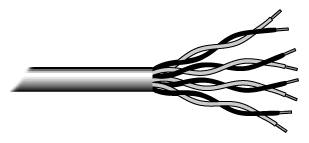
Twisted pair cabling comes in two varieties: shielded and unshielded. Unshielded twisted pair (UTP) is the most popular and is generally the best option for school networks (See fig. 1).


Fig.1. Unshielded twisted pair

The quality of UTP may vary from telephone-grade wire to extremely high-speed cable. The cable has four pairs of wires inside the jacket. Each pair is twisted with a different number of twists per inch to help eliminate interference from adjacent pairs and other electrical devices. The tighter the twisting, the higher the supported transmission rate and the greater the cost per foot. The EIA/TIA (Electronic Industry Association/Telecommunication Industry Association) has established standards of UTP and rated five categories of wire.

Categories of Unshielded Twisted Pair

Type Use
Category 1 Voice Only (Telephone Wire)
Category 2 Data to 4 Mbps (LocalTalk)
Category 3 Data to 10 Mbps (Ethernet)
Category 4 Data to 20 Mbps (16 Mbps Token Ring)
Category 5 Data to 100 Mbps (Fast Ethernet)

Buy the best cable you can afford; most schools purchase Category 3 or Category 5. If you are designing a 10 Mbps Ethernet network and are considering the cost savings of buying Category 3 wire instead of Category 5, remember that the Category 5 cable will provide more "room to grow" as transmission technologies increase. Both Category 3 and Category 5 UTP have a maximum segment length of 100 meters. In Florida, Category 5 cable is required for retrofit grants. 10BaseT refers to the specifications for unshielded twisted pair cable (Category 3, 4, or 5) carrying Ethernet signals. Category 6 is relatively new and is used for gigabit connections.

Unshielded Twisted Pair Connector

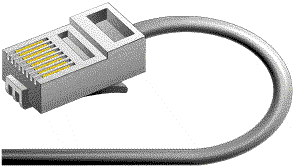
The standard connector for unshielded twisted pair cabling is an RJ-45 connector. This is a plastic connector that looks like a large telephone-style connector (See fig. 2). A slot allows the RJ-45 to be inserted only one way. RJ stands for Registered Jack, implying that the connector follows a standard borrowed from the telephone industry. This standard designates which wire goes with each pin inside the connector.


Fig. 2. RJ-45 connector

Shielded Twisted Pair (STP) Cable

A disadvantage of UTP is that it may be susceptible to radio and electrical frequency interference. Shielded twisted pair (STP) is suitable for environments with electrical interference; however, the extra shielding can make the cables quite bulky. Shielded twisted pair is often used on networks using Token Ring topology.

Coaxial Cable

Coaxial cabling has a single copper conductor at its center. A plastic layer provides insulation between the center conductor and a braided metal shield (See fig. 3). The metal shield helps to block any outside interference from fluorescent lights, motors, and other computers.


Fig. 3. Coaxial cable

Although coaxial cabling is difficult to install, it is highly resistant to signal interference. In addition, it can support greater cable lengths between network devices than twisted pair cable. The two types of coaxial cabling are thick coaxial and thin coaxial.

Thin coaxial cable is also referred to as thinnet. 10Base2 refers to the specifications for thin coaxial cable carrying Ethernet signals. The 2 refers to the approximate maximum segment length being 200 meters. In actual fact the maximum segment length is 185 meters. Thin coaxial cable is popular in school networks, especially linear bus networks.

Thick coaxial cable is also referred to as thicknet. 10Base5 refers to the specifications for thick coaxial cable carrying Ethernet signals. The 5 refers to the maximum segment length being 500 meters. Thick coaxial cable has an extra protective plastic cover that helps keep moisture away from the center conductor. This makes thick coaxial a great choice when running longer lengths in a linear bus network. One disadvantage of thick coaxial is that it does not bend easily and is difficult to install.

Coaxial Cable Connectors

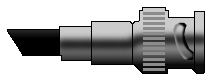
The most common type of connector used with coaxial cables is the Bayone-Neill-Concelman (BNC) connector (See fig. 4). Different types of adapters are available for BNC connectors, including a T-connector, barrel connector, and terminator. Connectors on the cable are the weakest points in any network. To help avoid problems with your network, always use the BNC connectors that crimp, rather than screw, onto the cable.


Fig. 4. BNC connector

Fiber Optic Cable

Fiber optic cabling consists of a center glass core surrounded by several layers of protective materials (See fig. 5). It transmits light rather than electronic signals eliminating the problem of electrical interference. This makes it ideal for certain environments that contain a large amount of electrical interference. It has also made it the standard for connecting networks between buildings, due to its immunity to the effects of moisture and lighting.

Fiber optic cable has the ability to transmit signals over much longer distances than coaxial and twisted pair. It also has the capability to carry information at vastly greater speeds. This capacity broadens communication possibilities to include services such as video conferencing and interactive services. The cost of fiber optic cabling is comparable to copper cabling; however, it is more difficult to install and modify. 10BaseF refers to the specifications for fiber optic cable carrying Ethernet signals.


Fig.5. Fiber optic cable

Facts about fiber optic cables:

  • Outer insulating jacket is made of Teflon or PVC.
  • Kevlar fiber helps to strengthen the cable and prevent breakage.
  • A plastic coating is used to cushion the fiber center.
  • Center (core) is made of glass or plastic fibers.

Fiber Optic Connector

The most common connector used with fiber optic cable is an ST connector. It is barrel shaped, similar to a BNC connector. A newer connector, the SC, is becoming more popular. It has a squared face and is easier to connect in a confined space.

Ethernet Cable Summary

Specification Cable Type Maximum length
10BaseT Unshielded Twisted Pair 100 meters
10Base2 Thin Coaxial 185 meters
10Base5 Thick Coaxial 500 meters
10BaseF Fiber Optic 2000 meters
100BaseT Unshielded Twisted Pair 100 meters
100BaseTX Unshielded Twisted Pair 220 meters

Wireless LANs

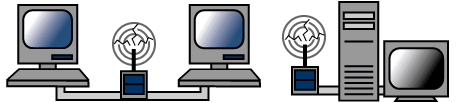
Not all networks are connected with cabling; some networks are wireless. Wireless LANs use high frequency radio signals, infrared light beams, or lasers to communicate between the workstations and the file server or hubs. Each workstation and file server on a wireless network has some sort of transceiver/antenna to send and receive the data. Information is relayed between transceivers as if they were physically connected. For longer distance, wireless communications can also take place through cellular telephone technology, microwave transmission, or by satellite.

Wireless networks are great for allowing laptop computers or remote computers to connect to the LAN. Wireless networks are also beneficial in older buildings where it may be difficult or impossible to install cables.

The two most common types of infrared communications used in schools are line-of-sight and scattered broadcast. Line-of-sight communication means that there must be an unblocked direct line between the workstation and the transceiver. If a person walks within the line-of-sight while there is a transmission, the information would need to be sent again. This kind of obstruction can slow down the wireless network.

Scattered infrared communication is a broadcast of infrared transmissions sent out in multiple directions that bounces off walls and ceilings until it eventually hits the receiver. Networking communications with laser are virtually the same as line-of-sight infrared networks.

Wireless LANs have several disadvantages. They provide poor security, and are susceptible to interference from lights and electronic devices. They are also slower than LANs using cabling.

Installing Cable - Some Guidelines

When running cable, it is best to follow a few simple rules:

  • Always use more cable than you need. Leave plenty of slack.
  • Test every part of a network as you install it. Even if it is brand new, it may have problems that will be difficult to isolate later.
  • Stay at least 3 feet away from fluorescent light boxes and other sources of electrical interference.
  • If it is necessary to run cable across the floor, cover the cable with cable protectors.
  • Label both ends of each cable.
  • Use cable ties (not tape) to keep cables in the same location together.

Article Source http://fcit.usf.edu/network/chap4/chap4.htm

How To Set Up Internet Connection Sharing in Windows 2000

Internet Connection Sharing (ICS) enables you to use Windows 2000 Professional to connect a small office network or home network with the Internet. ICS provides network address translation (NAT), IP addressing, and name resolution services for all the computers on a small network. This step-by-step article describes how to install ICS on Windows 2000 Professional operating systems.

The following hardware or software is required for this procedure:
DSL or cable modem connected to an Internet Service Provider (ISP) and an activated DSL or cable account.
Two installed network adapters. This article describes how to install a second network adapter.
The network is already configured with functioning TCP/IP.

How to Install a Second Ethernet Network Adapter to the ICS Host Computer

To install another Ethernet adapter to the ICS host computer, you must log on as a member of the Administrators group.
1.Shut down your computer properly, and then physically add the network adapter.
2.Restart your computer.
3.When the Found New Hardware dialog box is displayed that lists the name of the network adapter that you installed, click Next.
4.Click Next on the Install Hardware Device Drivers page.
5.On the Locate Driver Files page, click the media option that contains the drivers for the network adapter that you are installing, for example, CD-ROM drive, Floppy drive or Hard Drive Directory.
6.On the Driver Files Search Results page, click Finish.

NOTE: When you click Finish, the installation of the network adapter that you just installed is completed.

How to Configure the ICS Host Computer

The ICS host computer provides a connection through the second network adapter to the existing TCP/IP network. Log on as member of the Administrators group to set up the ICS host computer.
1.Click Start, click Settings, and then click Network and Dial-up Connections.
2.Right-click Local Area Connection (the network card that you just installed), and then rename it "The Internet Connection".

In the Network and Dial-up Connections dialog box, two connections are displayed (for different network adapters), The Internet Connection and Local Area Connection.
3.Right-click The Internet Connection and click Properties.
4.Click the General tab, and then verify that Client for Microsoft Networks and Internet Protocol (TCP/IP) are displayed.
5.Click the Sharing tab, and then click to select the Enable Internet Connection Sharing for this Connection check box.

NOTE: Make sure that firewall software or other Internet sharing software from a third-party manufacturer has been removed.
6.Click OK and exit to the desktop.

How to Configure the Windows 2000 Client

Log on as a member of the Administrators group to set up the Windows 2000 Professional clients that will share the Internet.
1.Click Start, select Settings, and then click Network and Dial-up Connections.
2.Right-click Local Area Connection and click Properties.
3.Click the General tab, and then verify that Client for Microsoft Networks and Internet Protocol (TCP/IP) are displayed.
4.Click Internet Protocol (TCP/IP), and then click Properties.
5.Click Obtain an IP address automatically, and then click Obtain DNS server address automatically (if these options are not already selected).
6.Click Advanced, and then make sure that the various lists on the IP Settings, DNS, and WINS tabs are all empty.

ICS provides these settings.
7.Click OK and exit to the desktop.

ICS and Dial-up Networking

You can use Dial-up Networking (DUN) to connect to the Internet; however, DUN typically has a lower bandwidth connection to the Internet. This connection is not as useful when multiple computers share the connection. In addition, DUN is not persistent (you have to dial up and make a connection) and can cause initial delays when you connect to hosts on the Internet. For additional information about how to use ICS with DUN, click the article number below to view the article in the Microsoft Knowledge Base:
237254 (http://support.microsoft.com/kb/237254/EN-US/) How to Enable Internet Connection Sharing on Network Connections

Troubleshooting

The following list describes how to prevent issues from occurring when you configure ICS:
Do not connect a hub directly to your DSL or cable modem. If you do so, your internal network is vulnerable to other computers located on the Internet. If you do connect a computer directly to a DSL or cable modem, you must disable file and printer sharing to limit your vulnerability from the Internet. However, when you do so, your network is prevented from sharing files and printers, which may be your primary reason for networking in the first place.
Check that firewall software or other Internet sharing software from third-party manufacturers has been removed. Make sure that only the ICS-enabled computer is providing IP addresses, forwarding DNS names, or acting as a default gateway. If not, ICS may not work or you may have unexpected consequences.
You cannot modify the configuration of ICS. For example, you cannot prevent ICS from allocating IP addresses or modify the IP addresses that ICS has allocated. If these features are required, you must run Network Address Translation (NAT) instead.
The ICS computer automatically assigns IP addresses, forwards DNS names to the Internet for name resolution and assigns itself as the default gateway for connecting to the Internet. If the ICS-enabled computer is unavailable, other client computers on your network are unable to access the Internet.
When you configure your network to use the TCP/IP protocol, remove instances of the NetBEUI protocol when you find them. NetBEUI is not necessary and may slow down the network.

Article Source http://support.microsoft.com/kb/307311